
General Settings
This section allows you to manage the basic settings of your website, including site information, timezone settings, and currency display.
Accessing General Settings: From the “Site Settings” menu, select “General Settings”.
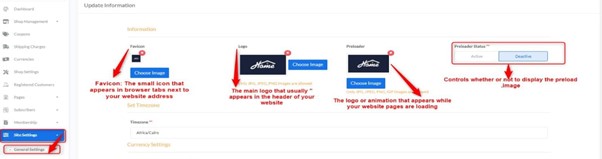
1. Update Information
This sub-section enables you to customize your website’s visual identity and other related settings:
- Favicon:
- Description: The small icon that appears in browser tabs next to your website’s title.
- How to Change: Click the “Choose Image” button to upload a new favicon.
- Note: Ensure the image is in JPG, JPEG, or PNG format.
- Delete: You can remove the current favicon by clicking the red “X” icon.
- Logo:
- Description: The main logo that typically appears in your website’s header.
- How to Change: Click the “Choose Image” button to upload a new logo.
- Note: Ensure the image is in JPG, JPEG, or PNG format.
- Delete: You can remove the current logo by clicking the red “X” icon.
- Preloader:
- Description: The logo or animated image that appears while your website pages are loading.
- How to Change: Click the “Choose Image” button to upload a new preloader image.
- Note: Ensure the image is in JPG, JPEG, PNG, or GIF format.
- Delete: You can remove the current image by clicking the red “X” icon.
- Preloader Status:
- Description: Controls whether the preloader image is displayed or not.
- Options:
- Active: To display the preloader.
- Deactive: To hide the preloader.
Saving Changes: After making any adjustments to the settings, click the “Update” button at the bottom of the page to save and apply the changes to your website.